New QC Application - Spring 26
Who is this guide for?
This guide is designed for existing, i.e. prior to March 2026, users of Airmail2 Cloud QC (Quality Control). The Spring 26 Update will introduce a new version with updated capabilities and workflows.
Introduction
New QC can be used in two different ways:
- Traditional QC - documents have been profiled and scanned, then the Operator performs image quality checks before delivery to the Recipient and/or DMS
- One-Touch workflow - documents are scanned but not yet profiled. The QC Operator profiles the document referring to thumbnails rather than paper. Image quality checks are also performed.
This guide covers only Traditional QC. There will be much more written about One-Touch in other articles and customer newsletters.
How to Access QC
The location of the QC application on the Airmail2 menu has not changed. The name of the application is now customizable, by default it is called Documents.
QC Settings
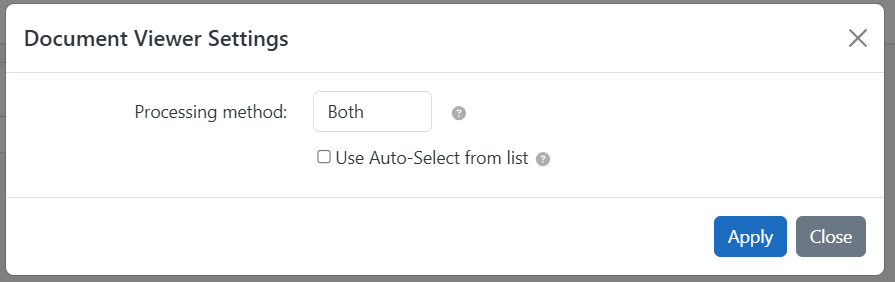
Choose the avatar (head-and-shoulders icon) to select or change QC Settings. Recommended: In Settings, choose BOTH for Processing Method as it enables both the list and entering specific barcode numbers. This frees the Operator to select from a list of UN-QC’d items rather than a physical stack of scanned documents.
QC Process
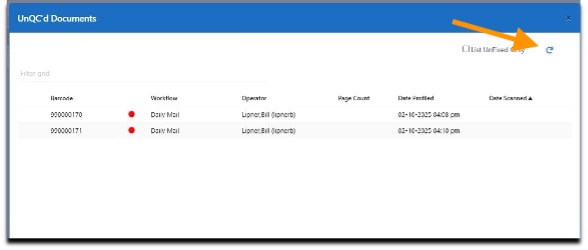
When presented with the Documents list, a document is ready to be QC’d when it indicates a black icon in the second column. If the system is still waiting for the scan or processing the OCR, the icon will be a red dot (see below). To refresh your view, click on the rotating arrow at the top right.
Once the document you want is ready, double click and it will be presented in an EXPANDED QC editing screen.
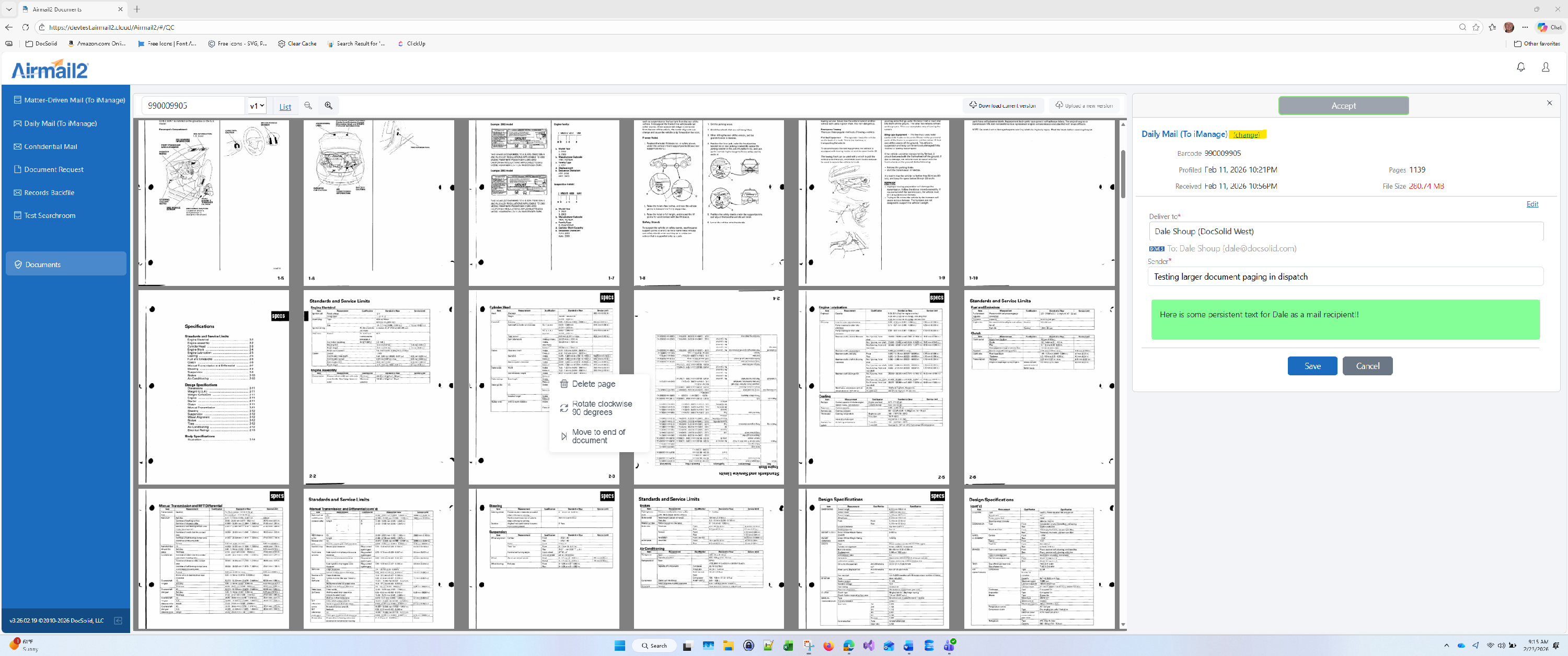
NOTE: File Download / Upload buttons are now more accessible at the top of the thumbnail panel.
Other Changes
- The software determines the number of thumbnails to view based upon: 1) operator's image zoom choice, 2) the size of the browser tab, and 3) the operator's choice of metadata panel size.
- The workflow may be modified by using the change link. Following a workflow change, the document is closed and must be reopened from the List or Barcode, the screen is not immediately refreshed for the new workflow.
Page Controls
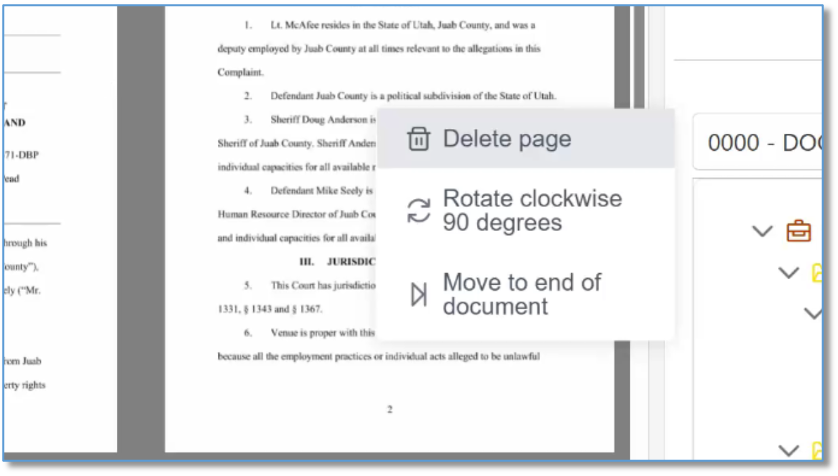
Delete Page, Rotate, or Move to End options, operator will Right-Click on the thumbnail they wish to manipulate. Double-clicking will OPEN the thumbnail in full page view.
Other Changes
- Rotate option always rotates the image 90 degrees clockwise - touch as many times as needed
- There are no page controls under the thumbnails
- Auto-Scroll option is no longer available (scroll wheel or any standard scrolling method works to page the viewer)
- First, Last, Next, Prev are only available in the full-page view
- Goto Page option is not currently available