Microsoft Entra App Registration
Airmail2 Cloud integrates with Microsoft Entra for user authentication (SSO) as well as user synchronization (adding users & groups to our database). This is accomplished via app registration. The instructions are detailed below. During the process, you will collect information about the registration to provide via text file or during a live support session (typically Zoom).
Reach out to support@docsolid.com when you have questions or want to schedule time with a customer engineer to assist with the process.
Microsoft Entra Admin Center
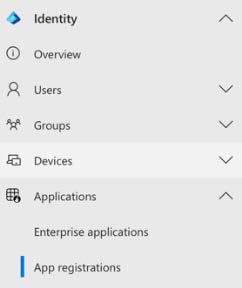
Properly authorized individuals should navigate to the Admin Center, Applications, App registrations.
· Click + New registration
New registration
· Name this new registration “Airmail2 Cloud User Sync + Auth” (recommended)
· Choose “Accounts in this organizational directory only”
· Skip the “Redirect URI (optional)” entry
· Click the Register button
App registration will display the newly created registration. Overview will be selected.
Overview
· Highlight and copy the Display name, Application ID, Object ID and Directory ID – paste this into a new text file.
· Be sure to name this file to include the firm name or customer id (DocSolid provided) .
· Click Authentication
Authentication – For user authorization
· Add a platform – Single-page application (defaults to “Authorization Code Flow with PKCE”)
· Redirect URI: https://<tenant_domain>.airmail2.cloud/airmail2/blank.html
· Check the box for “ID tokens”, but do not check “Access tokens”
· Touch Configure to open the blade
· Add additional URIs for the following:
o https://<tenant_domain>.airmail2.cloud/airmail2console/blank.html
o https://<tenant_domain>.airmail2.cloud/airmail2/
o https://<tenant_domain>.airmail2.cloud/airmail2console/
o https://<tenant_domain>.airmail2.cloud/airmail2hub/
· Select “Accounts in this organization directory only”
· Do not enable mobile and desktop flows
· Enable the property lock for all properties
· Click the Save button
· Select Certificates & secrets
Certificates & secrets
· Create a “New client secret”
· Enter Description “Airmail2 Cloud User Sync + Auth (<current month> <current year>)”.
· Set Expires to 365 days
· Click “Add”
· Copy the “Value” from your new secret to the text file created earlier and save for DocSolid
· Select API permissions
API permissions – Used to synchronize groups and users
· Group.Read.All (Application w/ Granted Admin Consent) – Allows service to read all groups to synchronize
· User.Read.All (Application w/ Granted Admin Consent) – Allows service to read user properties
· No other permissions are required
· Select Expose an API
Expose an API – Used to authenticate application to our Airmail2 Cloud API calls
· Navigate to Expose an API section in the Entra application
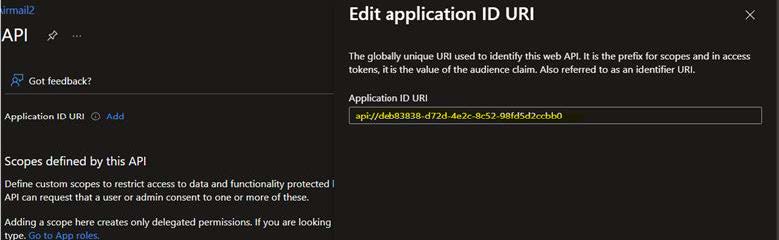
· Click on Add next to Application ID URI in the results blade.
· Keep the defaults and click Save
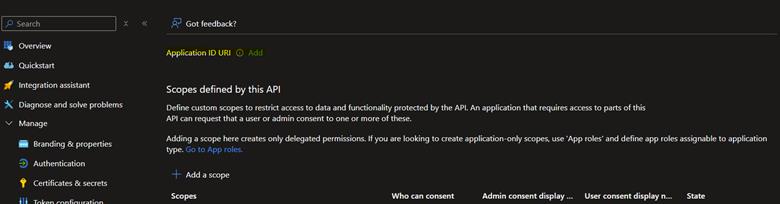
- Click Add a Scope to create the user_impersonation scope
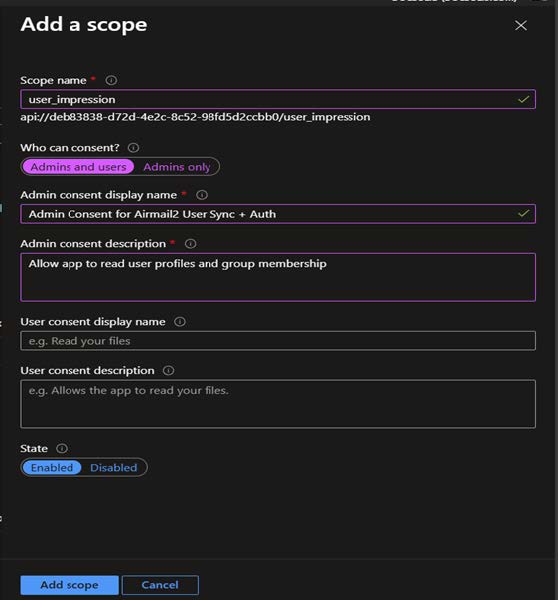
- Scope Name = user_impersonation
- Who can consent? = Admins and Users
- Admin Consent Display = Admin Consent for Airmail2 User Sync + Auth
- Admin Consent description = Allow app to read user profiles and group membership
- Touch Add scope to complete